


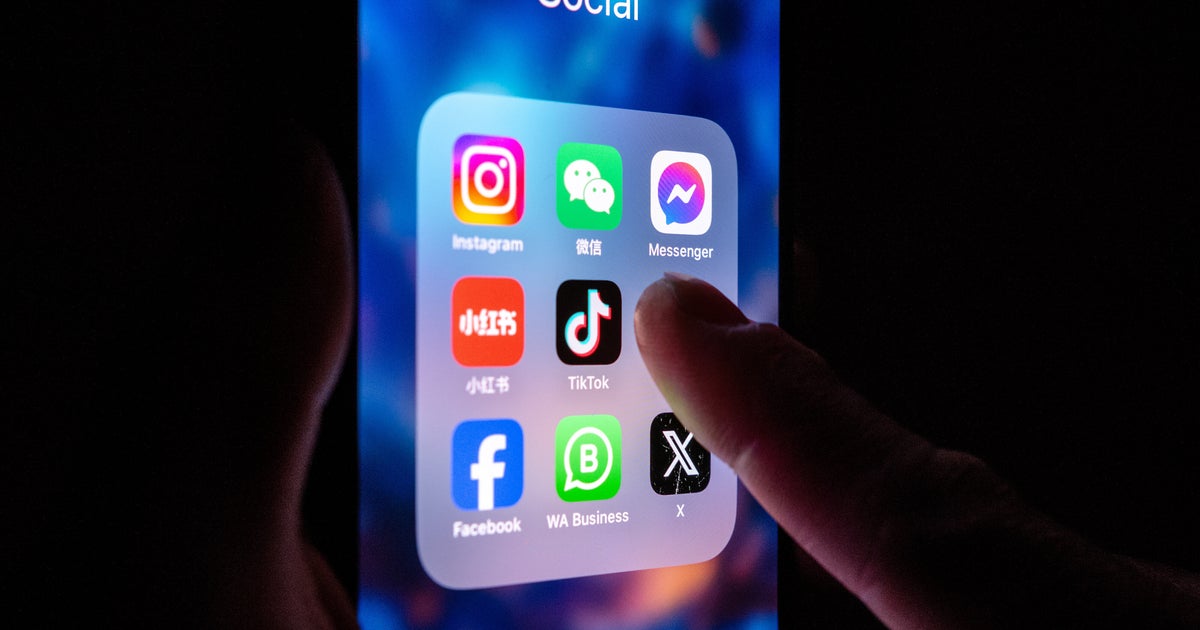
Our always-online digital society comes with a lot of perks ― and some undeniably horrific downsides.
The latter was on display Wednesday when videos of the fatal shooting of conservative activist Charlie Kirk quickly flooded social media. Many people logged on to their apps and immediately were met with gruesome accounts of the incident thanks to many apps’ autoplay function, where videos start playing without a user’s active involvement.
Research shows that viewing violent content on social media can cause people to experience symptoms similar to post-traumatic stress disorder. A 2015 study published in the British Psychological Society found that 22% of study participants “scored high on clinical measures of PTSD even though none had previous trauma, were not present at the traumatic events and had only watched them via social media,” according to the researchers.
If you don’t want your feeds to automatically play videos, there are ways to disable this function. (And it might be protective for your mental health.) Below are instructions on how to turn off autoplay on various social media apps:
How To Disable Autoplay On X (Formerly Twitter)
On your phone:
- Click on your profile photo in the app.
- Select Settings and privacy.
- Go to Accessibility, display and languages.
- Hit Data usage.
- Choose Video autoplay and choose the Never option.
On your desktop:
- Select the More button on the left-hand sidebar.
- Click Settings and privacy.
- Choose Accessibility, display and languages.
- Hit Data usage.
- Choose Video autoplay and choose the Never option
According to the platform, disabling this function will apply to any video that appears in your feed, as well as GIFs.
How To Disable Autoplay On Facebook
On your phone:
- Open the Facebook app and hit the menu icon (your profile image) in the bottom right corner.
- Select Settings & Privacy, then tap Settings.
- Under the Preferences section, select Media.
- In the Autoplay section, select Never Autoplay Videos.
On your desktop:
- Click your profile icon in the upper-right corner of the screen.
- Select Settings & Privacy, then click Settings.
- On the left side of the page, find the Preferences area and select Media.
- In the center of the page, find the Autoplay Videos option and select the option to turn off autoplay for videos.
How To Disable Autoplay On Instagram
On your phone:
- Open the Instagram app.
- Select your profile icon in the bottom right corner.
- Select the menu icon in the top right corner.
- Settings > Account > Data usage
- Toggle on the “Use Less Data” option. This will prevent videos from auto-playing and help manage your data usage.
On your desktop:
- Instagram says its autoplay is disabled by default when using Instagram on a web browser, so no action is needed.